
887 words, 5 minutes read time.
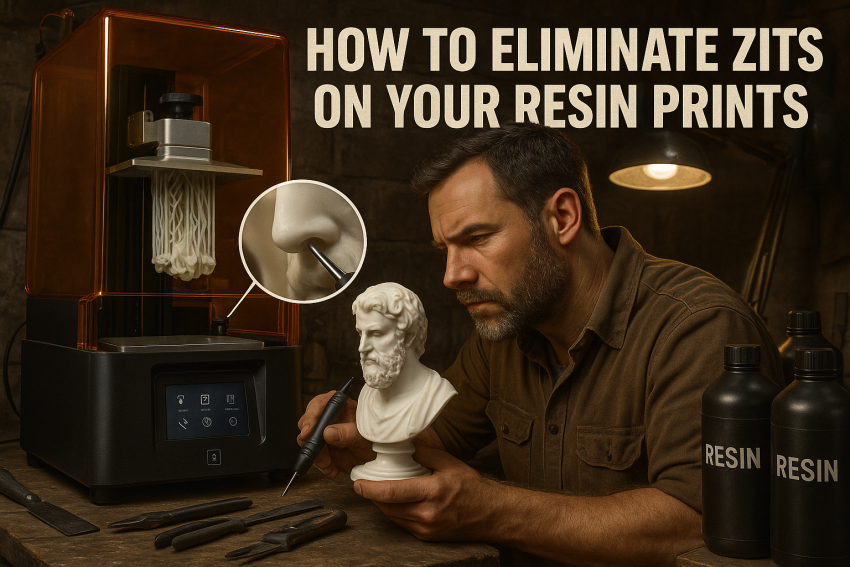
Nothing grinds a 3D printing enthusiast’s gears quite like spending hours on a perfect model, only to discover tiny, stubborn bumps—“zits”—marring the surface. It’s like your favorite wrench suddenly refusing to fit a bolt: infuriating, unexpected, and threatening your sense of control. If you’re tired of these imperfections wrecking your resin prints, you’ve come to the right place. Today, we’re diving deep into the technical, the tactical, and the hands-on approaches that turn a bumpy print into a flawless masterpiece.
Understanding Zits: Why They Appear
Before you can crush them, you need to know your enemy. Zits—those tiny bumps or pockmarks on resin prints—often arise from air bubbles trapped in the resin, microscopic debris on your build plate, or slight overexposure of a layer. Resin chemistry isn’t forgiving; even a speck of dust or a drop of old, partially cured resin can spawn a cluster of surface imperfections.
Environmental factors play a silent but lethal role. High humidity, fluctuating temperatures, or even a slightly viscous resin batch can produce zits as predictably as gravity pulls a hammer down. Think of it like maintaining your garage tools: neglect one nut or bolt, and suddenly nothing aligns as it should.
Preparing Your Printer Like a Pro
Flawless prints start before the first layer hits the build plate. Clean your build plate with IPA, check for micro scratches, and ensure it’s perfectly level. A tiny tilt can amplify zits, like misaligned gears on a motor.
Temperature control matters. Resin is a temperamental beast—too cold and it doesn’t cure properly, too warm and you risk overexposure. Filtering your resin removes microscopic debris before it has a chance to embed itself into your model. It’s the difference between assembling a precision engine and tossing the parts in a bucket, hoping for the best.
Optimizing Resin and Settings
Not all resin is created equal. Low-viscosity resins flow more predictably, reducing trapped air bubbles. Pay attention to your layer height: thicker layers may cure unevenly, creating surface imperfections. Fine-tune exposure times—too long, and zits appear like tiny volcanoes; too short, and layers won’t bond correctly.
Supports are not just functional—they’re strategic. Proper placement reduces unnecessary stress on overhangs and prevents micro-bubbling. Anti-aliasing features, available on most modern slicers, smooth edges at the layer level, shaving off the microscopic inconsistencies that lead to bumps.
Printing Techniques That Reduce Zits
Orientation is king. Angling your model strategically minimizes contact points, allowing trapped air to escape naturally. Peel mechanics also matter—how the printer separates the cured layer from the FEP film can subtly but significantly impact surface quality.
Think of it as machining a piece of metal. The right feed rate, angle, and tension determine whether your part is a precision fit or a rough, unusable chunk. Experimentation is key: small adjustments often yield disproportionately large improvements.
Post-Processing: The Final Assault
Even the most precise printing setup can leave a few blemishes. Post-processing is where you reclaim perfection. Wash and cure prints carefully; over-curing can harden bumps, while under-curing leaves soft spots vulnerable to finishing errors. Sanding and light polishing remove residual imperfections, and if necessary, a thin resin coat can fill stubborn micro-bumps without sacrificing detail.
Chemical smoothing—like an IPA bath or a thin coat of clear resin—acts like a finishing polish on high-end tools, giving the final piece that professional, man-cave-worthy shine.
Common Mistakes and How to Avoid Them
Many zits arise not from technical limits but from human error. Rushing prints, mixing resin improperly, or ignoring environmental conditions can turn your printer into a zit factory. Contaminated resin or neglected storage is another common culprit.
I’ve been there: a batch of prints sat overnight, ignored, and the next day looked like a pimple farm. Learning to respect resin’s quirks—its patience, its sensitivity—is the mark of an expert maker.
Conclusion
Minimizing zits on your resin prints isn’t magic—it’s methodical preparation, strategic printing, and careful post-processing. Treat your printer like precision machinery, respect your resin, and fine-tune your workflow, and you’ll produce models that look as sharp and flawless as your best custom gear.
Call to Action
If this post sparked your creativity, don’t just scroll past. Join the community of makers and tinkerers—people turning ideas into reality with 3D printing. Subscribe for more 3D printing guides and projects, drop a comment sharing what you’re printing, or reach out and tell me about your latest project. Let’s build together.

Sources
- All3DP: Resin 3D Printing Tips & Tricks
- Formlabs: The Complete Guide to Resin Printing
- MatterHackers: How to Get Better Resin Prints
- 3D Print Beginner: Perfect Resin Prints
- Christianly Resin: Tips for Smooth Resin Prints
- Creality Blog: Resin Printing Tips
- MakerGear: Reduce Resin Bumps
- 3DNatives: Resin 3D Printing Problems & Solutions
- Riverside 3D: Common Resin Printing Issues
- 3D Printing Media Network: Resin Printing Troubleshooting
- Simplify3D: Resin 3D Printing Troubleshooting
- 3D Insider: Resin 3D Printing Tips
- 3D Hubs: Solving Resin 3D Printing Problems
- MatterHackers: Resin 3D Printing Best Practices
- All3DP: Resin Printing FAQ
Disclaimer:
The views and opinions expressed in this post are solely those of the author. The information provided is based on personal research, experience, and understanding of the subject matter at the time of writing. Readers should consult relevant experts or authorities for specific guidance related to their unique situations.