
3,101 words, 16 minutes read time.
You want to get on the air one day, and you don’t want the first thing you do as an operator to be a slow, angry wrestle with menus, wrong offsets, and a radio that refuses to transmit because you forgot a tone. I’ve been around enough rigs, repeaters, and club nets to know the same mistake shows up again and again: people treat programming as an afterthought, then panic when they finally earn the right to key a mic. This piece is written from the vantage of someone who’s taught dozens of newcomers and saved more than a few radios from being reprogrammed into oblivion. You’ll get the practical how-to, the why behind the settings, and a short list of habits that prevent headaches—and wasted time—so that when your license day arrives you move from listener to confident operator without tearing your hair out.
Before we go any further, a quick, useful truth you’ll appreciate: CHIRP is a free, open-source tool built specifically to make radio programming predictable and less painful. “CHIRP is a free, open-source tool for programming your radio,” and that matters because having a reliable computer workflow means you don’t fight tiny displays and cryptic key sequences when you could be learning nets and practice procedures instead.
Why programming matters more than you think
People coming into the hobby usually treat their radio like a walkie-talkie: set a frequency, press transmit, make friends. In practice, a modern handheld or mobile has dozens of settings that determine whether you hear the local repeater at all or whether the repeater hears you. The distinction between receive frequency and transmit frequency, the concept of offsets, and the need for CTCSS or DCS tone access are not trivia—these are the difference between silence and a functioning comms path. The Technician license unlocks VHF and UHF privileges, which means you’ll have access to the bands used by almost all local repeaters and most emergency nets once you pass your exam. That license is an objective goal to aim for, but the quieter truth is this: the better your programming skills before you transmit, the sooner you’ll actually be useful on air.
Programming your radio is part technical, part organizational, and part discipline. Technical because you must understand offsets and tone modes. Organizational because your memory channels should be ordered and documented, not random. Disciplined because you must resist transmitting until you’re legally allowed: programming and listening are harmless, but keying up on frequencies you’re not authorized to use is not. The work you do today—learning how to program, building templates, and backing up memory files—pays off tenfold later.
Know your rig: not all radios are created equal
Handhelds (HTs), mobile radios, and base stations share many features, but they differ in ergonomics and capabilities. A small HT has limited button real estate, making manual entry of offsets and tones slow and error prone. Mobility units and base rigs tend to have larger displays and more memory, but that doesn’t remove the value of a computer workflow. Manufacturers supply programmer software for specific models, but those vendor tools often cost money or have limited model support. That’s why community tools like CHIRP exist: they let you treat the radio’s memory as a text file—easy to edit, easy to backup, and easy to migrate to another radio later. If you plan to grow beyond a single cheap HT, it’s worth learning the computer-based approach right away because the workflow scales; when you upgrade to a better rig, you’ll already have a tidy memory layout you can adapt.
If you’re shopping for a first radio, pick a model with a strong community around it. A vibrant userbase means more ready-made memory files, reliable drivers for programming cables, and plenty of how-to guides. If you already own a radio, the first step is to read the model manual for the programming basics and then back up whatever’s in the radio right now. Backups are the first protection against accidental lockouts or firmware quirks. You’ll also want to consider whether your rig supports digital modes such as DMR or whether it’s an analog-only unit; digital radios use different programming constructs and often require model-specific tools.
The essentials you must understand (so you stop guessing)
There are a few settings that, if you understand them, drastically reduce trial and error. For the absolute beginner, focus on these and ignore everything else until you’re comfortable. As one practical resource bluntly lays out: “For the absolute beginner, the most important settings are Receive Frequency, Offset Direction, Tone Mode, and CTCSS.” Get those four right and you’ve solved most first-contact problems.
Receive frequency is straightforward: it’s the frequency your radio listens to. Transmit frequency is what your radio sends on; on repeaters this is usually offset from the receive frequency. Offset direction tells the radio whether to add or subtract the offset from the receive frequency to determine your transmit frequency. Tone mode and CTCSS (or DCS) are the access tones many repeaters require; think of them as a passcode the repeater uses so it doesn’t open to every carrier on the band. Get those details wrong and you’ll hear the repeater chatter but never get through, or you’ll transmit on the wrong frequency and be effectively invisible. Learning the difference between simplexes (direct radio-to-radio) and duplex via repeater is also crucial: simplexes use the same frequency for transmit and receive; repeaters use different frequencies and usually need offsets or tones.
CHIRP: the community tool that makes programming human
If you’re new to programming, CHIRP is the practical starting place. It’s a community-maintained, cross-platform program that reads and writes radio memory files and lets you edit them in a spreadsheet-like interface. You can back up your radio, import repeater lists, edit fields in bulk, and then upload the tidy memory file back to your rig. A big advantage of CHIRP is that it supports many makes and models, so once you learn the tool your skills translate to different radios. Another operational advantage is that you can build multiple profiles—“home,” “travel,” “portable”—and load the correct profile based on where you plan to operate. CHIRP continuously publishes builds so you generally should be on the latest daily build for best device compatibility. Chirp My Radio+1
Using CHIRP also eliminates much of the finger-fumbling that makes people avoid programming: instead of navigating tiny menus, you open a familiar grid of rows and columns on your laptop, type names that make sense, and upload the results. CHIRP can import common file formats, and it’s easy to name memory channels in a way that’s meaningful when you’re wearing gloves or in a hurry.
The practical setup: cables, drivers, and the first read
A programming cable is the physical bridge between your radio and your computer. Cheap USB interface cables are available, but not all cables are equal; drivers are the bridge that get a cable recognized by the operating system. The first time you connect, make sure your computer sees the cable as a serial COM port (Windows) or a tty device (macOS/Linux). If the port doesn’t appear, a driver installation or a different cable is usually the fix. Once connected, the first real task is to read the current radio contents and save them immediately as a backup. That backup is your safety net. It’s worth repeating: before you change anything, make a copy of the radio’s memory and save it to your system with a sensible filename and date stamp.
Once you have a backup, test the read by looking at obvious entries like a known local repeater. If the contents look scrambled or empty, your radio may be in special modes or the cable is not fully compatible. Sometimes newer radio firmware interacts oddly with older programmers; when that happens, consult the radio community forums for your model or the CHIRP device support notes. Community pages and model-specific guides often have small, tested workarounds for stubborn cases.
Building a sane memory layout: names and order that work under pressure
A radio with a thousand unnamed memories is a radio you won’t trust when minutes matter. Memory channels should be named short and clear; names are faster to recognize than numbers when you’re scanning the display. Group channels by function rather than by random discovery: local repeaters first (ordered by proximity or reliability), then nets, then simplex channels including emergency frequencies. Reserve a handful of channels in each batch for short-term or experimental frequencies so your main list remains neat.
Organize channels into zones if your radio supports them. Zones are particularly valuable for travel: one zone for home city repeaters, another for work locations, and a travel zone for other regions. When you arrive somewhere new, import the appropriate repeater profile into that travel zone and you won’t have to shuffle your primary memory layout. Keep a master CHIRP file on your computer as your single source of truth; when you realise a rearrangement makes sense, edit the master file and re-upload instead of manually changing channels on the radio.
Step-by-step programming with CHIRP (practical example)
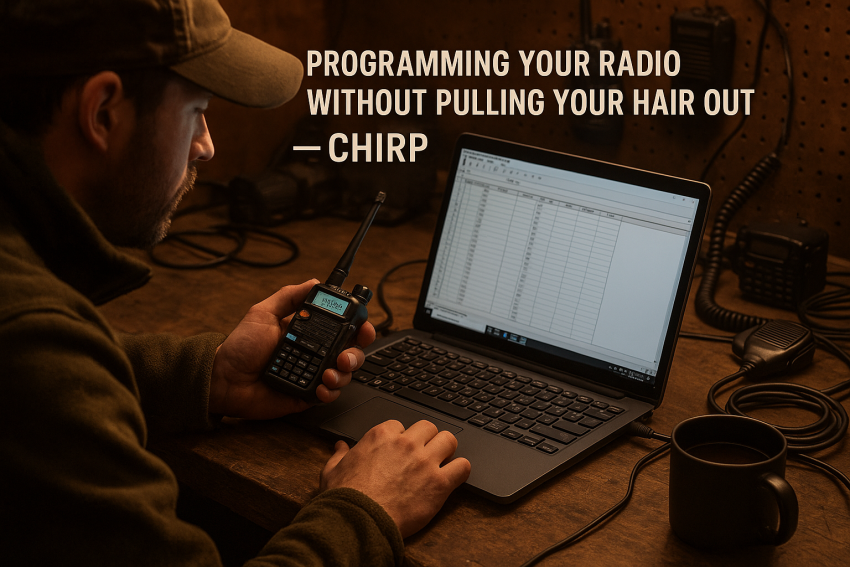
Start by connecting your radio to the computer and opening CHIRP. Choose “Download From Radio” to read the existing memory and save that file immediately. If the radio is empty or you’ve just bought it, download an appropriate start file from a repeater directory or your club’s web page and import it into CHIRP. The spreadsheet interface will show columns for receive frequency, tone, offset, offset direction, name, and comments. Edit each row carefully. For a repeater entry, use the repeater’s listed receive frequency as the radio’s Receive Frequency, set Offset Direction to the repeater’s recommended plus or minus, and enter the tone under CTCSS/DCS as required by the repeater listing. Name the memory channel with a short, easily readable name that includes either the town name or the repeater ID so you can identify it at a glance.
After editing, use CHIRP’s built-in validation tools to check for obvious mistakes such as transmit frequency out of band or illegal offsets. Once satisfied, choose “Upload To Radio” and follow CHIRP’s prompts. After upload, test each programmed channel in the field: listen first; if you hear the repeater’s courtesy tone, try a short test transmission following local etiquette. If something fails, read the radio again into CHIRP and compare the file to your backup to see whether the radio accepted the changes or whether the upload silently failed. If difficulties persist, check for driver issues, cable compatibility, or firmware conflicts.
Finding the right repeaters and getting the settings correct
Repeater directories are your best friend when you’re building memory channels. RepeaterBook is a comprehensive, community-maintained directory that lets you find repeaters by location and provides the necessary offsets and tones to program them. Use a proximity search to find repeaters near your operating location and prioritize ones that list regular nets and good uptime. Repeater listings typically include the receive frequency, offset direction and size, tone (if any), and sometimes a helpful description of coverage. Those are the exact fields you’ll copy into CHIRP rows so you don’t need to guess offsets or tones.
If the repeater directory shows an offset but you aren’t sure whether it’s plus or minus, confirm via your local club or the repeater’s listing notes. Misapplying an offset is a common mistake: visually the radio will show a channel that looks correct, but your transmit frequency will be offset in the wrong direction and you’ll be invisible to the repeater. The habit of always checking the directory entry before programming will save you repeated test transmissions.
Troubleshooting the common failure modes
When something doesn’t work after you program, start with basics: can you receive the repeater? If you cannot hear it at all, check that your radio is in the proper band and that the antenna is connected and functional. If you hear the repeater but your transmissions don’t access it, check the tone mode and CTCSS/DCS. If the repeater requires a tone and you transmit without it, the repeater will ignore you. If the repeater replies but you can’t hear it when it transmits back to you, double-check your offset direction and values. If CHIRP fails to read or write the radio reliably, try a different USB cable, update or reinstall drivers, or use a different computer to isolate where the fault lies.
Another persistent issue is people cluttering memory with dozens of rarely used frequencies. That makes scanning slow and forces you to hunt for the important channels. Resist the temptation to dump every frequency you find into memory. Be purposeful: program what you actually use and keep experiments in a clearly labeled testing zone.
Good habits that keep your hair intact
Backups, backups, backups. Keep your master CHIRP file under version control of sorts—simple date stamps and short change notes work fine. Before any major update, create a new backup. When you edit, use descriptive comments for why a channel exists or what the repeater’s nickname is.
Label channels in short, readable uppercase or a sensible shorthand you’ll recognise at a glance—don’t use long sentences for names. Keep essential emergency simplex channels in reserved slots near the start of your list. Make it a habit to test at least one programmed channel after major changes to confirm everything behaves as expected.
Document the cable and driver you used for a successful upload. Different computers and driver versions can behave differently. If you travel and need to program on a laptop, having a note that says “Windows 10, FTDI driver X.Y, Cable Model ABC” will save a frustrating hour of fiddling.
Next steps: what to learn after you can program confidently
Once you’re comfortable with basic analog programming, explore digital modes like DMR and how they map to talkgroups rather than simple repeater offsets. Dive into antenna basics—antenna location and quality dramatically affect your real-world results much more than obsessing over tiny power gains. Learn logging practices so you can keep track of contacts once you begin transmitting. Join a local club and participate in their nets; there’s no substitute for real on-air practice under the watchful guidance of experienced operators.
If you’re the type who likes to tinker, try creating a “portable” profile with a different scan order optimized for fieldwork or emergency deployments. Practice swapping profiles so the act of changing operating context becomes second nature; you’ll thank yourself when you have to move from home to car to a field exercise quickly.
A few expert notes and outside voices
CHIRP’s documentation and community pages emphasize practical safety and the value of backups—treat those recommendations seriously. As CHIRP’s own site puts it succinctly, the software is designed to be a dependable bridge between radios and the tools you use to manage them, which is why staying current with builds is recommended.
On the settings side, respected programmer guides for vendor software stress the same priorities: get receive frequency, offset direction, tone mode, and CTCSS right before tackling advanced options. That endorsement from programmer manuals is not a pedantic detail; it’s textbook common sense and avoids most beginner errors.
If you want a practical place to start consolidating repeaters for your region, use RepeaterBook’s proximity search to gather the exact receive/tone/offsets and import those entries into your CHIRP file. Those directory entries are the same data points you’ll program into your radio and will save you from guessing.
Final framing: why this work matters beyond the hobby
Programming your radio with care is not just about convenience or ego. It’s about becoming a reliable communicator. In emergencies, clarity and order matter more than power or fancy equipment. The person who can rapidly find the correct repeater, switch to the appropriate zone, and make a quick check-in is the person your net control will count on. The minimalist discipline of a clean, well-documented memory file is the kind of competence that turns hobbyists into useful operators.
The goal isn’t to build an impenetrable fortress of settings. The goal is to make radio operation predictable, repeatable, and quickly recoverable. That means backups, readable names, sensible ordering, and a simple, practiced upload/download workflow using CHIRP or a preferred vendor tool. Learn the mechanics now, and the operational confidence you want—maybe sooner than you expect—will follow.
Parting challenge
If you take one practical bite today, do this: pick one radio, install CHIRP, read the radio’s memory, save that file, and program a single local repeater. Then step back and listen. If you get the repeater’s courtesy tone or hear the net, you’re doing the hard part right—everything else is fine tuning. Make that single task your baseline habit and build from there.
If you want more, I’ll help you build a model-specific CHIRP template, walk through driver quirks for particular cables, or draft a tidy five-slot emergency memory layout you can load and test in ten minutes. Join the conversation below, subscribe for future practical guides, or contact me directly.
If this story struck a chord, don’t just scroll on. Join the brotherhood—men learning to build, not borrow, their strength. Subscribe for more stories like this, Drop a comment about where you’re growing, or Reach out tand tell me what you’re working toward. Let’s grow together.

Sources
- How to Program a Ham Radio: A Comprehensive Guide (CrateClub) — step-by-step programming via software including CHIRP.
- Quickstart Guide for All Hams (ARRL) — broad primer on amateur radio and getting licensed (helps frame context).
- Getting Started With Ham Radio : 5 Steps (Instructables) — beginner’s vantage, good for situating the reader.
- Ham Radio Guides (HamRadioPrep) — collection of guides, includes programming and repeaters.
- Radio Programming Resources (McARCS) — specific resources and downloads on programming radios and using CHIRP.
- [Beginner’s Guide] Ham Radio Basics for Preppers (PewPewTactical) — nice accessible article introducing the amateur radio mindset.
- Basic Settings Descriptions for Radio Programming (RT Systems) — technical breakdown of programming settings (offsets, tone, etc).
- Amateur Radio Guide to DMR (DMR-MARC) — deeper dive into digital mobile radio programming.
- Nifty Accessories – Ham Radio Guides & Accessories — vendor site but includes lots of programming & guide resources.
- “Ok, so, there are tons of posts on HOW to program radios …” (Reddit r/HamRadio) — community wisdom and real-users sharing their programming practices.
Disclaimer:
The views and opinions expressed in this post are solely those of the author. The information provided is based on personal research, experience, and understanding of the subject matter at the time of writing. Readers should consult relevant experts or authorities for specific guidance related to their unique situations.