
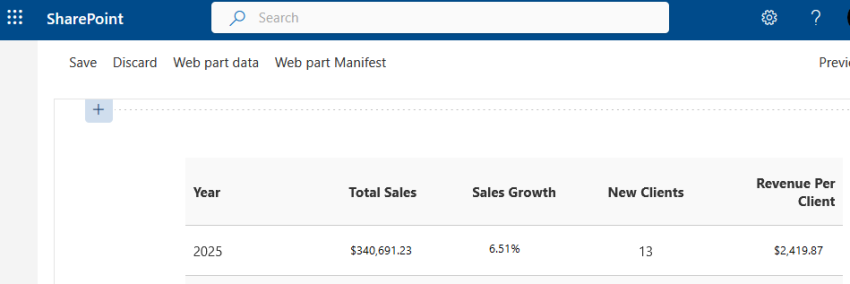
In today’s competitive business environment, having dynamic and responsive web parts in SharePoint can greatly enhance productivity and decision-making. By using the SharePoint Framework (SPFx) with React Hooks and TypeScript, developers can create efficient, scalable, and user-friendly solutions. This quick guide will walk you through creating an SPFx web part for a sales-based business, fetching and displaying annual sales data using a ColdFusion CFC service.
Introduction to the SharePoint Framework (SPFx)
SPFx is a powerful tool for building client-side components that integrate seamlessly with SharePoint. It supports modern web technologies like React, TypeScript, and SCSS, making it an excellent choice for extending SharePoint’s capabilities.
Transitioning from Class-Based Components to React Hooks
For a while, I’ve been wanting to move away from class-based components in my SPFx apps but struggled to figure out how to effectively make the transition. The adoption of React Hooks has been a game changer in this regard. React Hooks simplify component logic, enhance reusability, and provide a cleaner, more readable way to manage state and side effects in functional components. The approach we’ll discuss in this guide leverages React Hooks to build a modern and efficient SPFx web part.
Setting Up the Web Part
We begin by setting up the SPFx web part. Below is the basic structure of the web part where we define the necessary properties and render our React component.
import * as React from 'react';
import * as ReactDom from 'react-dom';
import { Version } from '@microsoft/sp-core-library';
import {
  IPropertyPaneConfiguration,
  PropertyPaneTextField
} from '@microsoft/sp-property-pane';
import { BaseClientSideWebPart } from '@microsoft/sp-webpart-base';
import * as strings from 'SalesReportWebPartStrings';
import SalesReport from './components/SalesReport';
import { ISalesReportProps } from './components/ISalesReportProps';

export interface ISalesReportWebPartProps {
  ServiceEndpoint: string;
  ApiKey: string;
  UserToken: string;
}

export default class SalesReportWebPart extends BaseClientSideWebPart<ISalesReportWebPartProps> {
  public render(): void {
    const element: React.ReactElement<ISalesReportProps> = React.createElement(
      SalesReport,
      {
        ServiceEndpoint: this.properties.ServiceEndpoint,
        ApiKey: this.properties.ApiKey,
        UserToken: this.properties.UserToken,
      }
    );

    ReactDom.render(element, this.domElement);
  }

  protected getPropertyPaneConfiguration(): IPropertyPaneConfiguration {
    return {
      pages: [
        {
          header: {
            description: strings.PropertyPaneDescription,
          },
          groups: [
            {
              groupName: strings.BasicGroupName,
              groupFields: [
                PropertyPaneTextField('ServiceEndpoint', { label: strings.ServiceEndpoint }),
                PropertyPaneTextField('ApiKey', { label: strings.ApiKey }),
                PropertyPaneTextField('UserToken', { label: strings.UserToken }),
              ]
            }
          ]
        }
      ]
    };
  }
}
Key Components:
- BaseClientSideWebPart: This is the core class for creating SPFx web parts. It manages the rendering and configuration of the web part.
- Property Pane: The Property Pane allows users to configure the web part by providing values like the service endpoint, API key, and user token. These values are passed to the React component for use in data fetching.
Developing the React Component
Next, we create the React component responsible for fetching and displaying sales data. This component utilizes React Hooks to manage state and handle side effects, such as data fetching.
import * as React from 'react';
import { useState, useEffect } from 'react';
import axios, { AxiosResponse } from 'axios';
import styles from './SalesReport.module.scss';
import { ISalesReportProps } from './ISalesReportProps';

interface ISalesData {
  year: number;
  totalSales: number;
  salesGrowth: number;
  newClients: number;
  revenuePerClient: number;
}

const SalesReport: React.FC<ISalesReportProps> = ({ ServiceEndpoint, ApiKey, UserToken }) => {
  const [salesData, setSalesData] = useState<ISalesData[] | null>(null);
  const [error, setError] = useState<string | null>(null);

  useEffect(() => {
    const fetchData = async (): Promise<void> => {
      try {
        const result: AxiosResponse<ISalesData[]> = await axios.post(
          `${ServiceEndpoint}?method=getSalesData`,
          { ApiKey, UserToken }
        );
        setSalesData(result.data);
      } catch (err) {
        setError(err.message);
      }
    };

    fetchData();
  }, [ServiceEndpoint, ApiKey, UserToken]);

  if (error) return <div className={styles.error}>Error: {error}</div>;
  if (salesData === null) return <div>Loading...</div>;

  return (
    <div className={styles.salesReport}>
      <div className={styles.row}>
        <div className={styles.cell}>Year</div>
        <div className={styles.cell}>Total Sales</div>
        <div className={styles.cell}>Sales Growth (%)</div>
        <div className={styles.cell}>New Clients</div>
        <div className={styles.cell}>Revenue per Client</div>
      </div>
      {salesData.map((item, index) => (
        <div className={styles.row} key={index}>
          <div className={styles.cell}>{item.year}</div>
          <div className={styles.cell}>{item.totalSales}</div>
          <div className={styles.cell}>{item.salesGrowth}</div>
          <div className={styles.cell}>{item.newClients}</div>
          <div className={styles.cell}>{item.revenuePerClient}</div>
        </div>
      ))}
    </div>
  );
};

export default SalesReport;
Key Components:
- useEffect Hook: This hook fetches sales data from the ColdFusion service when the component mounts. It ensures the data-fetching logic is executed correctly.
- useState Hook: This hook manages the component’s state, holding both the fetched sales data (
salesData) and any potential error messages (error). - Error Handling: If an error occurs during data fetching, it is captured and displayed to the user.
ColdFusion CFC Service
The sales data displayed in our SPFx web part is fetched from a ColdFusion CFC service. Below is an anonymized version of the ColdFusion script that processes the data requests.
remote any function getSalesData() returnformat="JSON" {

    queryResults1 = queryExecute("[SQL GOES HERE]", {}, {datasource = "sales_db"});
    queryResults2 = queryExecute("[SQL GOES HERE]", {}, {datasource = "sales_db"});

    data = {};

    for (row in queryResults1) {
        year = row.year;
        data[year] = {
            "year": year,
            "totalSales": row.total_sales,
            "salesGrowth": row.sales_growth,
            "newClients": "",
            "revenuePerClient": ""
        };
    }

    for (row in queryResults2) {
        year = row.year;
        if (structKeyExists(data, year)) {
            data[year].newClients = row.new_clients;
            data[year].revenuePerClient = row.revenue_per_client;
        } else {
            data[year] = {
                "year": year,
                "totalSales": 0,
                "salesGrowth": 0,
                "newClients": row.new_clients,
                "revenuePerClient": row.revenue_per_client
            };
        }
    }

    resultArray = [];
    for (yearKey in data) {
        arrayAppend(resultArray, data[yearKey]);
    }

    arraySort(resultArray, function(a, b) {
        return b.year - a.year;
    });

    return serializeJSON(resultArray);
}
Key Components:
- queryExecute: The actual SQL queries have been replaced with
[SQL GOES HERE]. These queries fetch sales data and other relevant metrics from thesales_dbdatasource. - Data Structuring: The data is organized into a structure where each year’s sales data is stored and combined with additional metrics, such as new clients and revenue per client.
Conclusion
The code presented in this guide is based on real working examples that have been anonymized for illustrative purposes. While the exact code may not function out-of-the-box due to anonymization and placeholders, the style and approach are designed to provide a solid foundation for building similar solutions.
By leveraging React Hooks in SPFx, we simplify state management and side effects in functional components, making the development process more intuitive and efficient. Additionally, this guide demonstrates how to use ColdFusion to provide web services that seamlessly integrate with SPFx components, enabling robust data handling and presentation.
Embracing these modern practices can enhance your SharePoint development efforts, offering a more maintainable and scalable approach to building dynamic web parts. Happy coding!
