


What is a SSH Key?
SSH stands for Secure Shell and is a method used to establish a secure connection between two computers. SSH works by authenticating based on a key pair, with a private key being on a remote server and the corresponding public key on a local machine. When the keys match, access is granted to the remote user.
SSH keys are used for authentication and by setting an SSH key on your gitlab and/or github profile, you can connect using git without using an username and password each time; however, if you set a passphrase on your SSH key, you will need to use the passphrase to use the key.
In this how-to article, I will show how to generate a SSH key on Windows 10. I have spit Step 1 down into two sections: The PowerShell way, and the Windows App & Features way.
STEP 1: Install the Windows 10 OpenSSH Client using PowerShell
- Run the following command:
Get-WindowsCapability -Online | ? Name -like ‘OpenSSH*’
in an elevated PowerShell to verify if the OpenSSH Client is installed. (Figure 1) - If the OpenSSH Client isn’t installed, run the following command:
Add-WindowsCapability -Online -Name OpenSSH.client~~~~0.0.1.0
from the elevated PowerShell.
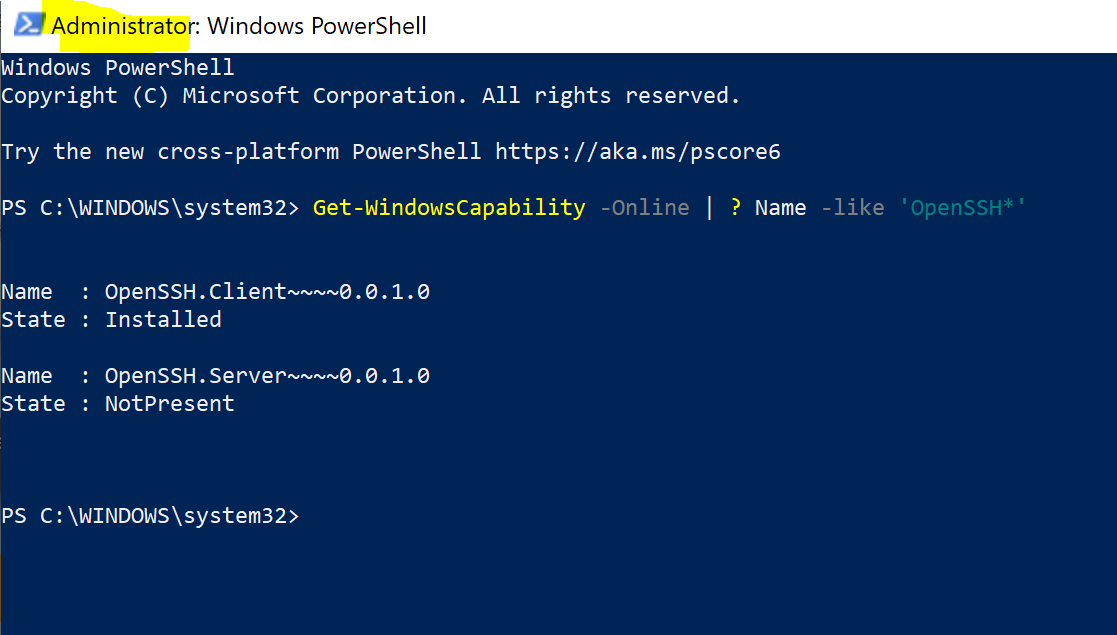
Elevated PowerShell verifying if the OpenSSH Client is installed
STEP 1: Install the Windows 10 OpenSSH Client using “Apps & Features“
1. Open the Settings panel, then click Apps or Search for “Apps & Features“
2. Click on “Optional Features“
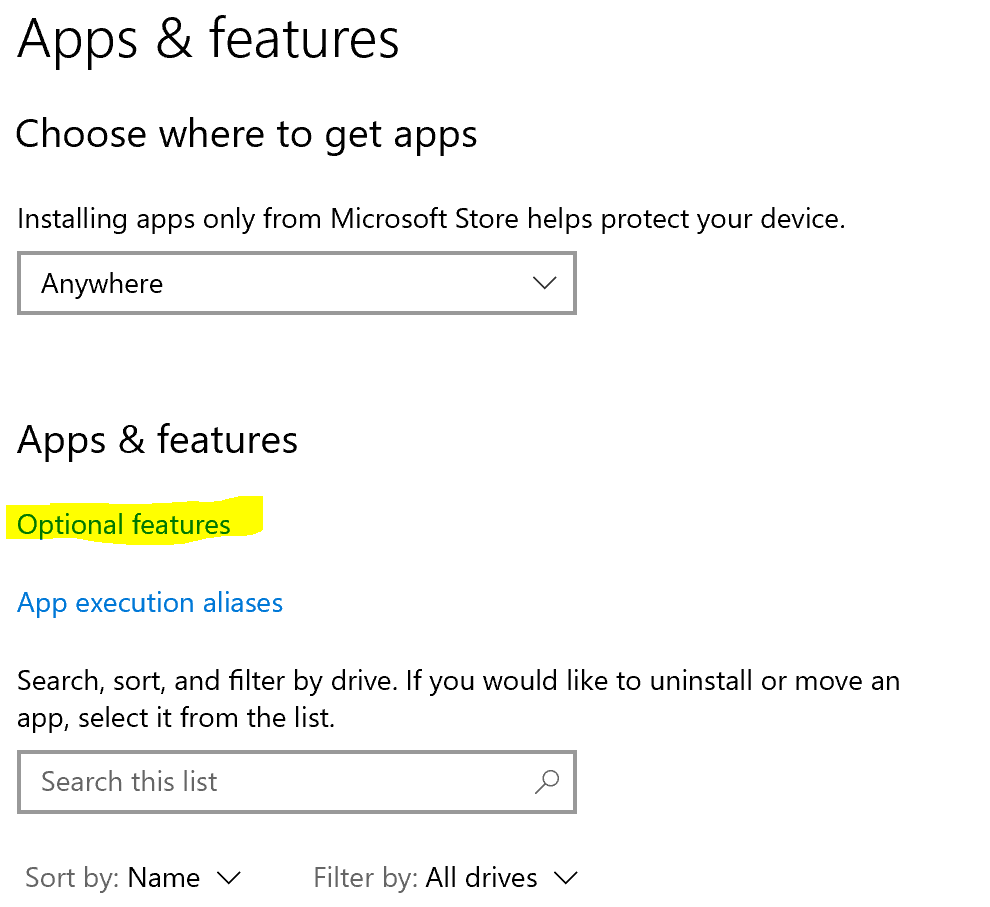
3. Click on “Add a Feature“
4. Scroll down until you find “OpenSSH Client“
5. Select the “OpenSSH Client” and click the “Install (1)” button
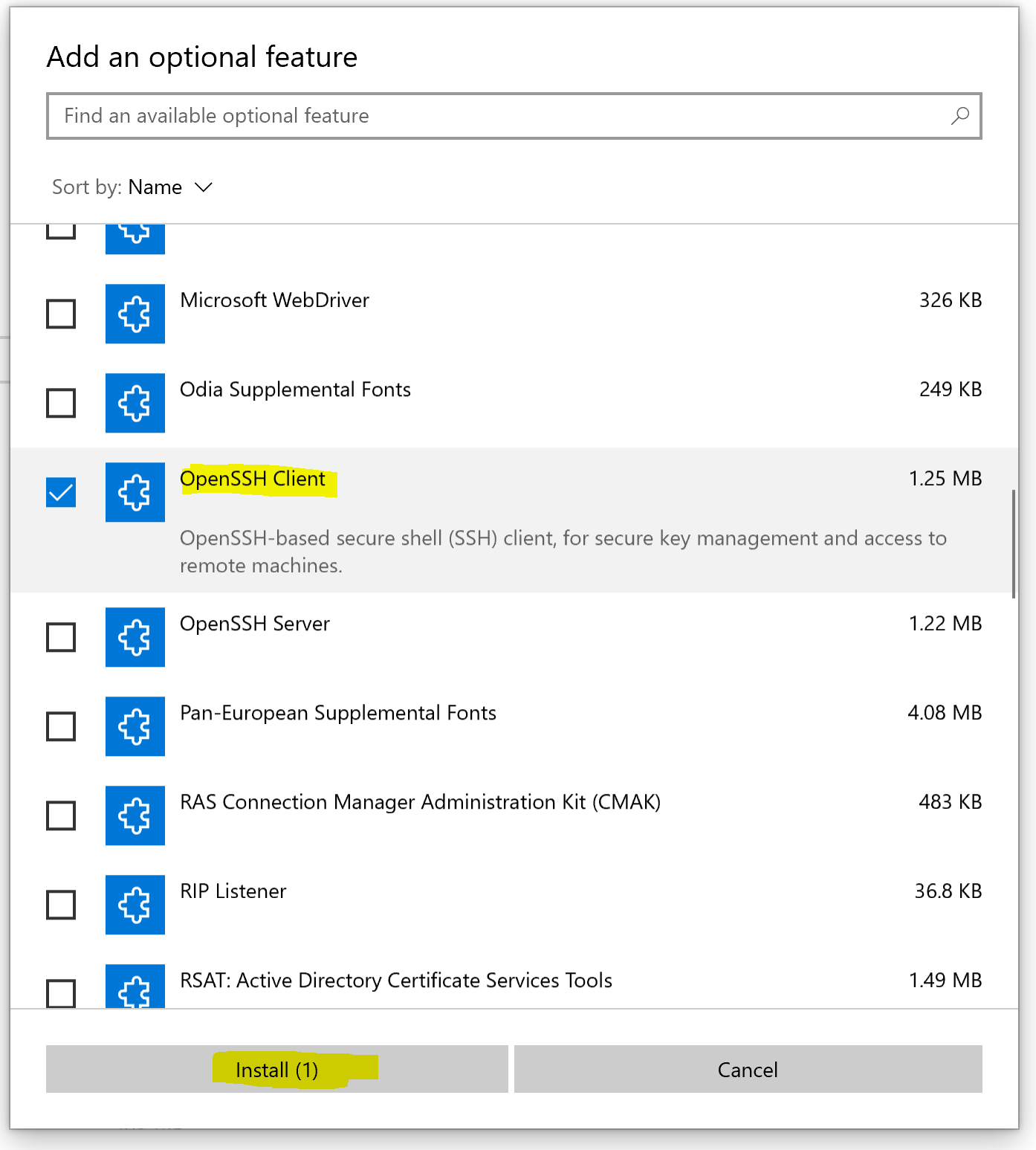
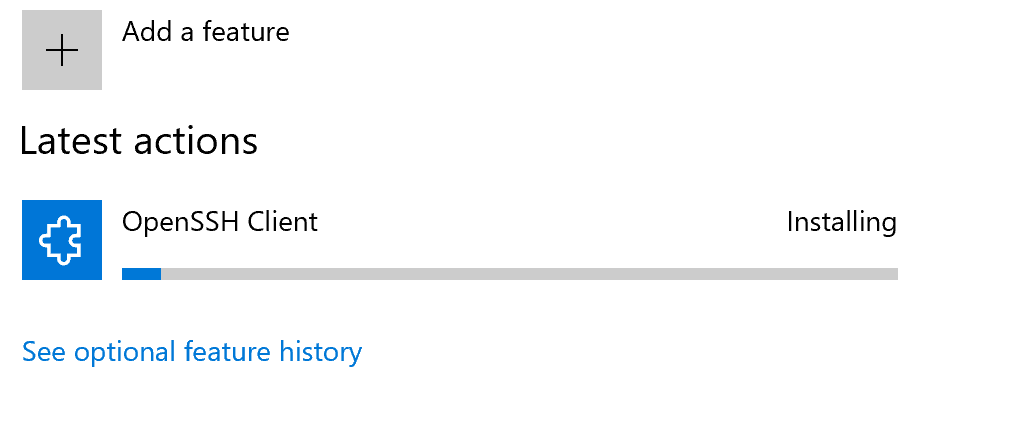
6. Windows 10 will install the OpenSSH Client.
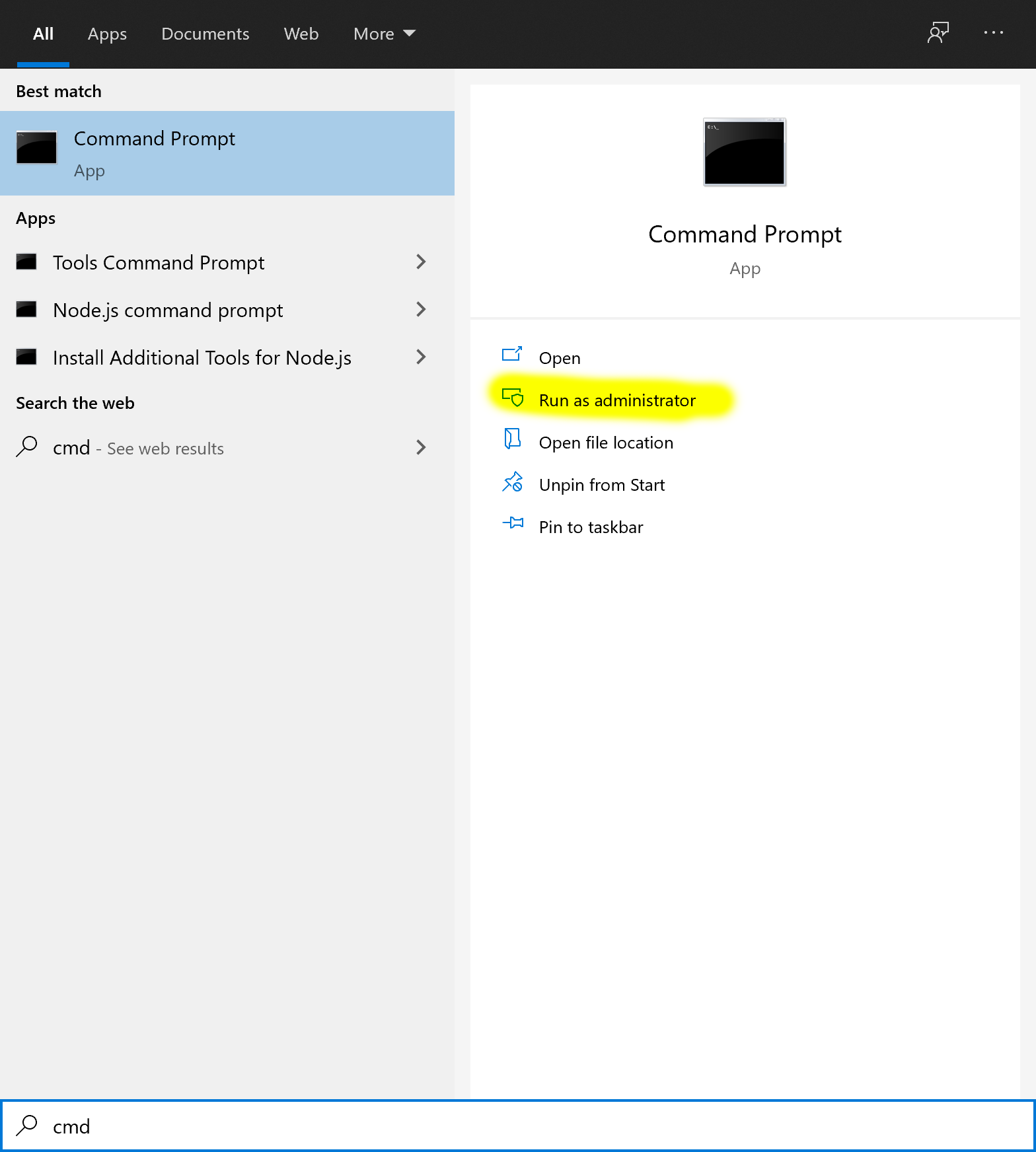
STEP 2: Open an elevated Command Prompt
1. Press the Windows key
2. type cmd.
3. Under Best Match, right-click Command Prompt.
4. Click Run as Administrator.
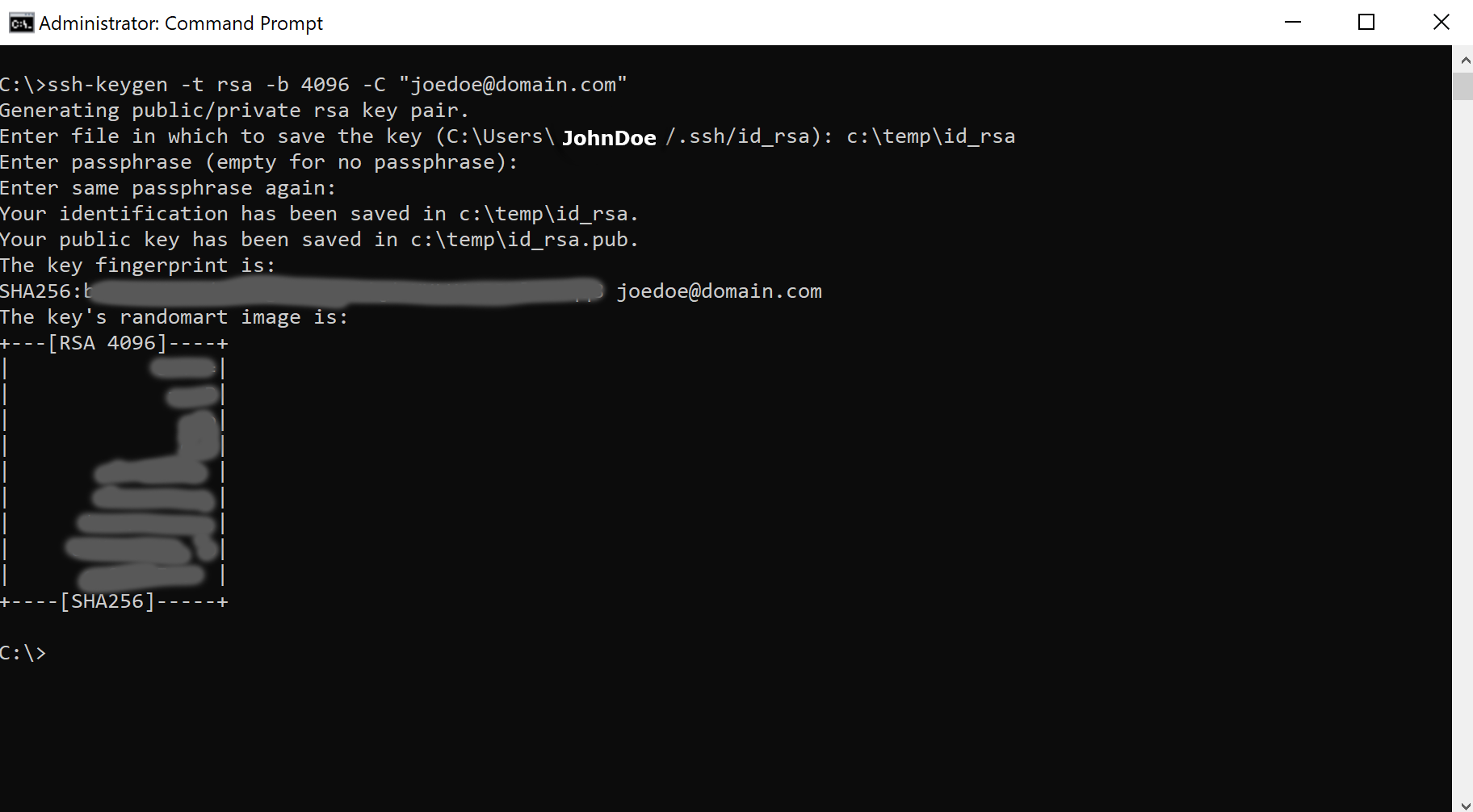
STEP 3: Use OpenSSH to Generate an SSH Key Pair
- In the command prompt, type the following:
ssh-keygen -t rsa -b 4096-C "<YOUR EMAIL ADDRESS>"
Notes
- US National Institute of Standards and Technology recommends that you use a key size of at least 2048 bits.
- If you have a key saved in the default location in STEP 3, it may over write an existing key and cause issues with services that depend on that key.
- Using a passphrase on your ssh keys are highly recommended.