
748 words, 4 minutes read time.
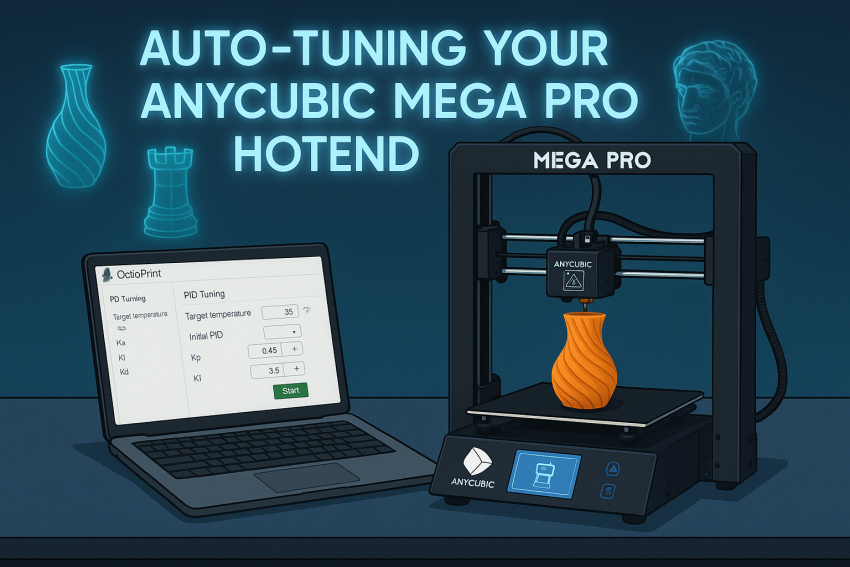
If your AnyCubic Mega Pro is struggling to maintain a consistent hotend temperature, it might be time to tune its PID (Proportional, Integral, Derivative) settings. Temperature fluctuations can lead to poor print quality, such as inconsistent extrusion or failed prints. This guide will walk you through auto-tuning your hotend using OctoPrint, inspired by Jacob Swanson’s 3D Printer PID Tuning with OctoPrint.
What You’ll Need
- An AnyCubic Mega Pro 3D printer
- OctoPrint installed and connected to your printer
- A computer or device to access OctoPrint’s interface
What is PID Tuning?
PID tuning optimizes the printer’s temperature control system. The hotend’s PID controller adjusts the heating element to maintain a stable target temperature. Over time, factors like a new hotend, wear, or environmental changes can cause temperature instability, requiring a recalibration of the PID values (Kp, Ki, Kd).
Why Tune Your AnyCubic Mega Pro?
If your Mega Pro’s hotend temperature fluctuates (e.g., overshooting or dropping during prints), it can affect print quality. Tuning ensures the hotend maintains a steady temperature, improving consistency and reliability.
Checking Original PID Values
Before tuning, check your current PID settings. On the AnyCubic Mega Pro, you can retrieve these via the printer’s display (under “Control” > “Temperature” > “PID Settings”) or by using OctoPrint:
Open OctoPrint and navigate to the Terminal tab.
Enter the command M503 to display the current settings.
Note the PID values (e.g., P, I, D). For reference, typical default values might look like:
- PID-P: 33
- PID-I: 1
- PID-D: 189
Auto-Tuning with OctoPrint
Follow these steps to auto-tune your AnyCubic Mega Pro’s hotend:
- Access OctoPrint: Open the OctoPrint web interface and go to the Terminal tab.
- Suppress Messages: Check all “Suppress message” checkboxes to reduce clutter in the terminal output.
- Run the Auto-Tune Command: Enter the following command to start the tuning process:
M303 E0 S220 C10- M303: Initiates PID auto-tuning.
- E0: Targets the hotend (use E1 for the heated bed).
- S220: Sets the target temperature to 220°C (a common printing temperature for PLA or PETG; adjust for your filament).
- C10: Runs 10 tuning cycles for accuracy.
Wait for Completion: The tuning process will heat and cool the hotend multiple times. This may take several minutes. Note: The terminal output may be pushed out of the buffer due to suppressed messages, so monitor the process.
Review Results: Once complete, OctoPrint will display the new PID values, e.g.:
Recv: Kp: 21.56
Recv: Ki: 1.45
Recv: Kd: 78.92
Recv: PID Autotune finished! Put the Kp, Ki and Kd constants into Configuration.h
Applying New PID Values
After tuning, apply the new values to your printer:
Round the values to the nearest whole number for simplicity (e.g., Kp: 22, Ki: 1, Kd: 79).
In OctoPrint’s Terminal tab, enter:
M301 P22 I1 D79
M500- M301: Sets the new PID values (P for Kp, I for Ki, D for Kd).
- M500: Saves the settings to the printer’s memory.
Alternatively, update the values manually via the printer’s display under “Control” > “Temperature” > “PID Settings.”
Verifying the Settings
To confirm the new values are applied, send the M503 command again via the OctoPrint terminal or check the printer’s display. The output should reflect your updated PID values.
Tips for Success
Test with Your Filament: Choose a target temperature (S value) that matches the filament you use most (e.g., 200°C for PLA, 240°C for ABS).
Monitor During Prints: After tuning, run a test print to ensure the hotend maintains a stable temperature.
Retune if Needed: If you change hotends or notice temperature issues again, repeat the tuning process.
By following these steps, your AnyCubic Mega Pro should maintain a consistent hotend temperature, leading to better print quality and fewer failed prints. Happy printing!

Sources
- 3D Printer PID Tuning with OctoPrint – Jacob Swanson
- M303 – PID Autotune | Marlin Firmware
- OctoPrint Official Website
- PID Tuning for 3D Printers | All3DP
- AnyCubic Mega Pro Product Page
- 3D Printer Calibration – PID Tuning | Teaching Tech
- AnyCubic Mega Pro PID Tuning Guide | Thingiverse
- M301 – Set PID Parameters | Marlin Firmware
- M500 – Save Settings | Marlin Firmware
- M503 – Report Settings | Marlin Firmware
- How to PID Tune Your 3D Printer | 3DBeginners
- PID Tuning | RepRap Wiki
- AnyCubic Mega Pro User Manual
- OctoPrint Terminal Features
- PID Tuning for 3D Printer Hotend and Bed | CNX Software
Disclaimer:
The views and opinions expressed in this post are solely those of the author. The information provided is based on personal research, experience, and understanding of the subject matter at the time of writing. Readers should consult relevant experts or authorities for specific guidance related to their unique situations.